

Many parents and teachers search for spag .com when they need grammar practice for primary school children. SPaG means spelling, punctuation and grammar. This site gives children online tests, and it gives teachers quick results. It is a paid service run for schools, so people often ask how it works before they sign up.
This guide explains what the site offers, who uses it, and how the spag .com login works. You will also learn how tests are set, how results are read, and what to do when something goes wrong. The details come from the official FAQ page and from public teacher reviews. Details can change, so always check the official site for the latest facts.
What Spag .com Offers
The official FAQ describes the site as a place for online grammar and punctuation tests. Children take the tests on a screen. The site marks them, and teachers can see a gap analysis. That is a report that shows which skills a class has not learned yet. Think of it like a map that marks the weak spots in a road.
The tests cover the curriculum from Year 1 to Year 6. The FAQ says they are similar in style to the KS1 and KS2 SATs tests. Those are national tests in England for younger pupils. Because of this link, the site fits UK schools best. If you live elsewhere, check that the content matches your own school system.

Who Uses Spag .com and Why
The main users are teachers. A Year 6 teacher might use the tests to check gaps before the SATs. A Year 3 teacher might use older tests to revise earlier work. Pupils are the second group, because they sit the tests with their own login. Parents are a third group. They usually see the site when a school sends home login details.
Some public reviews suggest families may also sign up on their own. I could not confirm how that works, so check the plans page for current rules. The site follows the England key stage system, so it fits UK schools best. Children in other systems may find some content a poor match.
How the Tests Are Built
Each year group has between 11 and 14 tests that focus on one skill. These short tests have about 10 questions each. There are also mixed grammar tests with more questions. The official FAQ says longer tests may have 20, 25, or 50 questions. Year 6 has more mixed tests than the other years.
This setup gives teachers a choice. A short test can check one skill after a lesson. A longer test can check a whole year of learning. For example, a teacher might set a short test on prefixes on Monday. Then the class might sit a longer mixed test at the end of term.
Choosing the Right Licence
A licence is the plan a school buys to use the site. The official FAQ lists four types. The KS1 plan covers Years 1 and 2. The KS2 plan covers Years 3 to 6. The KS1 and KS2 plan covers everything. A Year 6 plan covers the Year 6 tests and the KS2 practice SATs tests.
The FAQ gives some advice on choosing. It suggests the KS2 plan for Years 4, 5, and 6. For Year 3, it suggests the full plan so the class can revise Year 2 work. Prices depend on the package size you pick, so I have not listed any here. Use the plans and pricing button on the official site to see the current cost. Pick a plan by the year groups you teach, not by habit. A plan that is too small may leave gaps, while one that is too large may waste money.
How the Spag .com Login Works
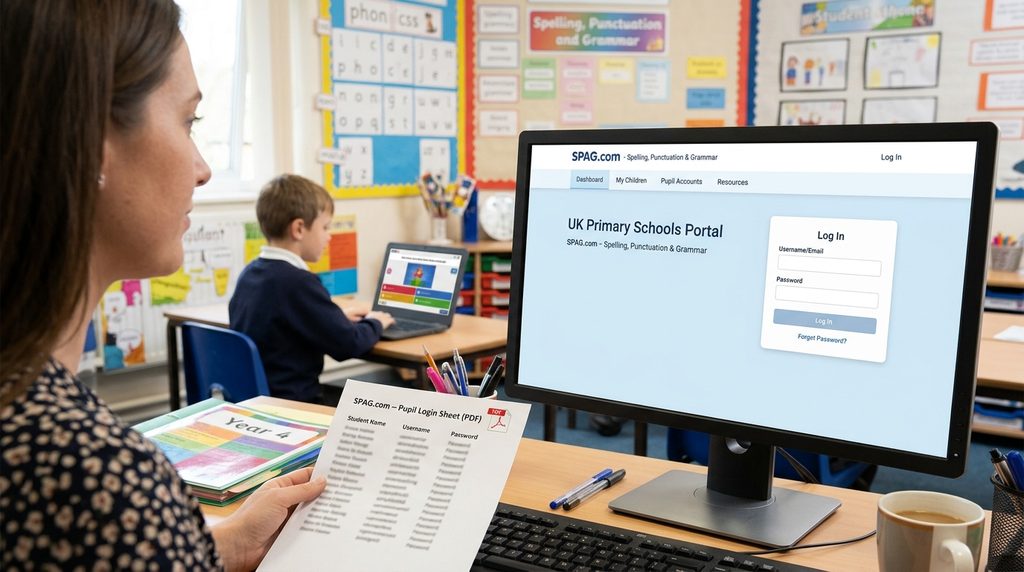
The login works in two layers. The school gets an admin account, and each child gets a separate account. To start, go to www.spag.com and use the Log In button in the top right corner. Teachers type the username and password they received by email. Children use the details that the software gave them.
A teacher cannot choose the children’s usernames or passwords. The software assigns them, and the teacher can view them on the My Children page. The teacher can also print them as a PDF. If a teacher forgets a password, the Forgot password link will help. It asks for the email address used to register, and then it sends the welcome email again.
Setting Up a Class and Setting a Test
After the first login, the teacher adds the children. The FAQ says to use the My Children tab and create a new class. You can type or paste a list of names. Next, go to the Set a Test tab and pick a test. You can view the test before you set it. Then tick the children who should take it.
The tests are flexible. You can set the same test more than once. You can also give a Year 5 test to a Year 6 child if your plan includes it. At the end of the school year, a teacher can delete old children and add the new group. Be careful here. The FAQ says deleted children cannot be brought back, and their test data is removed.
How Children Take a Test
A child logs in and clicks the Begin test link. The child answers the questions and clicks Finish. Then the child confirms that the test is done. The score shows straight away. A child does not need to finish in one sitting. The Pause button saves the test, and the child can return later.
After a test, children can look back at their answers. The FAQ says correct answers show in green and wrong answers in orange. A child can also click a Show Answer button to see the right one. This is useful for learning, not just for scoring. A child can only sit the same test again if the teacher sets it again.
Reading the Reports
Teachers use the My Reports tab to see results. Click View Report next to a test. A graph shows how the class did, so gaps stand out fast. You can also choose one child from a filter. Then you see which areas that child found hard and which questions were wrong.
If a result is missing, the likely reason is simple. The child may have paused the test and not finished it. Ask the child to log in and click Finish. Check the reports a few days after you set a test, so you have time to act on the results. If the test is complete and still missing, contact support.
Data and Privacy on Spag .com
The site works with children’s names and test results, so privacy matters. The official FAQ links to a privacy policy and a data sharing document. It says the policy covers what data is collected, how long it is kept, and how deletion works. Read these papers before you add children to an account. Your school may also have its own rules about online tools.
The FAQ gives a few clear facts. Test data is kept until the end of the following school year, unless you delete the child or cancel. If you delete a child, their test data is removed at once. Data in an expired account may be deleted at any time. Share login details only with the right people, and follow the official security guidance.
What Teachers Say About It
Public teacher reviews on Schoolzone from 2022 give a mixed but useful picture. Several reviewers liked the quick data and the ease of use. Some used it for homework, for revision, or to find gaps in learning. A few said it works better for KS2 than KS1. Young children may find it hard to use alone.
Some reviewers also named weak points. A few found the tests samey over time. Others said children felt upset when one mistake in a multi-part question made the whole answer wrong. Some wanted more tasks for different ability levels. These reviews are older, so treat them as a guide. A free look at the site or a school trial may help you judge it. Ask other teachers at your school what they think. A short chat can show whether the tests fit your own pupils.

Common Problems and Easy Fixes
Device problems come up often. The official FAQ says you do not need an app, because the site works in a web browser. It also says the site is not made for iPads or tablets, and a PC, Mac, or laptop is best. It says phones cannot be used. So if a child cannot open a test, switch to a computer first.
Account problems have simple fixes too. You cannot change a username yourself, so email the support team at support@spag.com. If you ordered the wrong upgrade, contact support as well. Always check you are on the real site before you type any login details. Look at the web address in your browser, because look-alike pages can appear in search results. Type the address yourself if you feel unsure.
Frequently Asked Questions
Does spag .com have spelling tests?
The official FAQ describes the tests as grammar and punctuation tests. The name includes spelling, but I could not confirm spelling tests from that page. Check the test list on the official site before you buy if spelling matters to you.
How does a school pay?
The FAQ says the site sends an invoice by email and by post. It must be paid within 30 days. You can pay by card, cheque, or bank transfer. Payment details may change, so follow the instructions on your own invoice.
How fast is an account ready?
If you register online, the FAQ says the account is made at once. The login details show on screen at the end. If you ask the team for help, it aims to finish within 24 hours. Weekends and bank holidays do not count.
Can I add more children later?
Yes, the FAQ says you can upgrade. Log in and use the Upgrade button in the top right. You can add child accounts, more tests, or both. Check the new end date, because the new licence runs for 12 months from the upgrade.
Can a parent use spag .com at home?
Parents can use it if their school gives them login details. One primary school’s parent guide says teachers set tasks and children log in with their own details. Other schools may work in a different way, so ask your child’s teacher.
Where can I get help?
The official FAQ lists an email address for support, support@spag.com. It also lists a phone number. Contact details can change, so use the Contact link on the site. Have your username ready, but never share your password.
Final Thoughts
Spag.com is an online tool for grammar and punctuation tests, aimed at primary school children in Years 1 to 6. Its main strengths, from the official FAQ and teacher reviews, are quick results and clear gap reports. Its limits include device rules and mixed views on how engaging the tests feel. Whether it suits you depends on your school, your pupils, and your goals. Take your time before you decide.
Your next step is simple. Visit the official site and read the FAQ page. Compare the plans with your year groups. If you are a parent, ask your child’s school before you look for an account. Then, when you reach the spag .com login page, check the address twice before you enter any private details.
Disclaimer
This article is for general information only. It was written with AI assistance. Details may change, and it may not cover every situation. Please check important or current facts through official or trusted sources before you rely on them.