

Have you ever looked at an app on your phone and wished you could make one just like it? It might seem like a big job that needs years of study, but there is a fun and easy way to start today. You can use a tool called mit app inventor to build your own mobile apps without typing any hard code. This platform was made by smart people at a famous school to help anyone learn how computers think. It uses colorful blocks that snap together like puzzle pieces, so you do not have to worry about making spelling mistakes in your code. This means you can focus on your great ideas instead of getting stuck on tiny errors. In 2026, this tool is better than ever because it works faster and helps you see your results right away.
Understanding the Screen Layout
When you first open the website, you will see two main parts that work together to make your app. One part is called the Designer, and it is where you pick what your app looks like. You can drag buttons, pictures, and text boxes onto a blank screen to arrange them just how you want. It is like decorating a room because you choose where everything goes so it looks nice and makes sense. The other part is the Blocks Editor, which is where you tell the app what to do. This area has many colored shapes that represent different actions, such as math problems or sending messages. These blocks only fit together if they make sense, which stops you from making common mistakes before they happen. This safe space lets you try new things without fear of breaking anything.

Setting Up Your Tools
You do not need to buy expensive software or download huge files to get started with mit app inventor. Everything lives on the internet, so you just need a web browser and a free account to begin working. If you use a computer with Windows 10, you do not have to install any extra programs because the site handles all the heavy lifting for you. To see your app work on a real phone, you will need a helper app called the AI Companion. This small program lets your phone talk to your computer over the internet so you can test changes instantly. It is like having a magic window that shows you exactly what your app will look like while you build it. This fast connection saves you time because you do not have to wait for long updates to see if your idea works.
Building Your First Simple App
The best way to learn is by making something small and useful right away. Start by placing a button and a label on your screen in the Designer view. Then switch to the Blocks Editor to connect these items so they interact with each other. You can pick a block that says “when button clicked” and attach it to another block that changes the text on the label. This simple step teaches you how cause and effect work in programming because pressing the button causes the text to change. You will feel proud when you see your first creation come to life on your phone screen. This quick win gives you confidence to try more complex features next.
Mastering the Block Categories
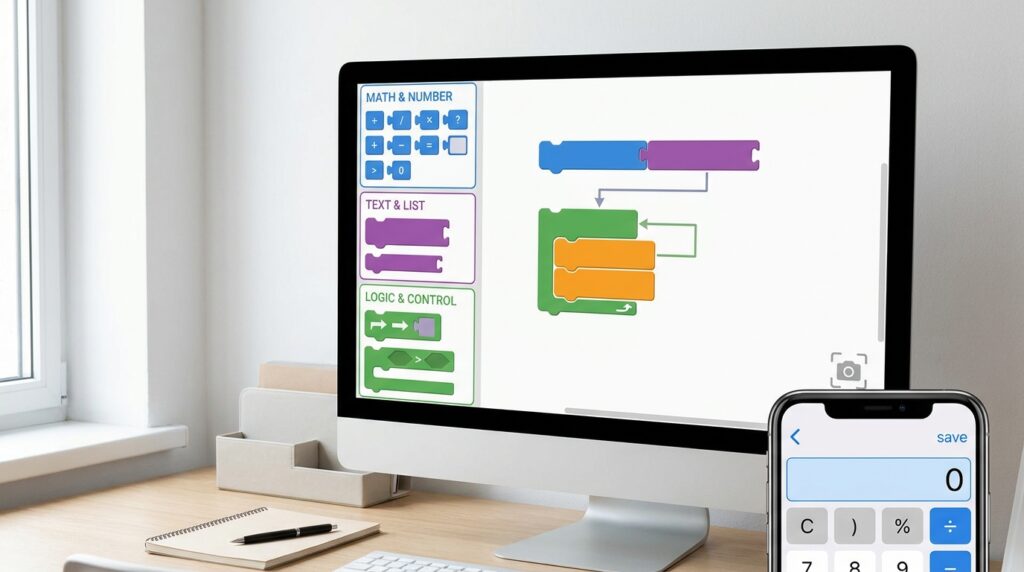
As you explore the Blocks Editor, you will find groups of blocks organized by what they do. Some blocks handle numbers and math, while others manage words and lists of items. There are also blocks for controlling the flow of your app, such as making decisions or repeating actions. Learning where to find these tools helps you work faster because you know exactly where to look for the right piece. Taking screenshots of your block setups can help you remember how you solved a problem later. This habit is useful when you want to share your work with friends or ask for help online. Over time, you will recognize patterns in how these blocks fit together, which makes building new apps much easier.
Using Timers for Action
Sometimes you want your app to do something automatically without waiting for a person to press a button. The timer block is perfect for this because it triggers events after a set amount of time passes. You can use it to create animations, update scores in a game, or check for new data from a sensor. For example, a timer can move a picture across the screen to make it look like it is flying. This feature adds life to your app because things happen on their own, making the experience more dynamic. Understanding how to control time in your app opens up many new possibilities for creative projects.
Connecting to Physical Devices
One of the most exciting things you can do is make your app talk to real-world hardware like Arduino or ESP32 boards. These small computers can read sensors or control lights, and your app can send them instructions through Bluetooth. This connection allows you to build smart home devices or remote-controlled robots using your phone as the controller. You will need to use special blocks that handle Bluetooth Low Energy signals to send and receive data. This process involves pairing your phone with the device and then exchanging simple messages that both sides understand. It feels like magic when you press a button on your screen and a light turns on across the room.
Creating Fun Games
Making a game is a great way to practice many skills at once because it requires graphics, movement, and rules. You can build a simple version of Flappy Bird by using a canvas to draw the background and moving sprites for the character. The timer block helps update the position of objects many times per second to create smooth motion. You also need to detect when objects touch each other to know if the player crashed or scored a point. Managing these different parts teaches you how to keep your code organized and efficient. Games are fun to play and even more fun to show off to your friends and family.
Saving Data for Later
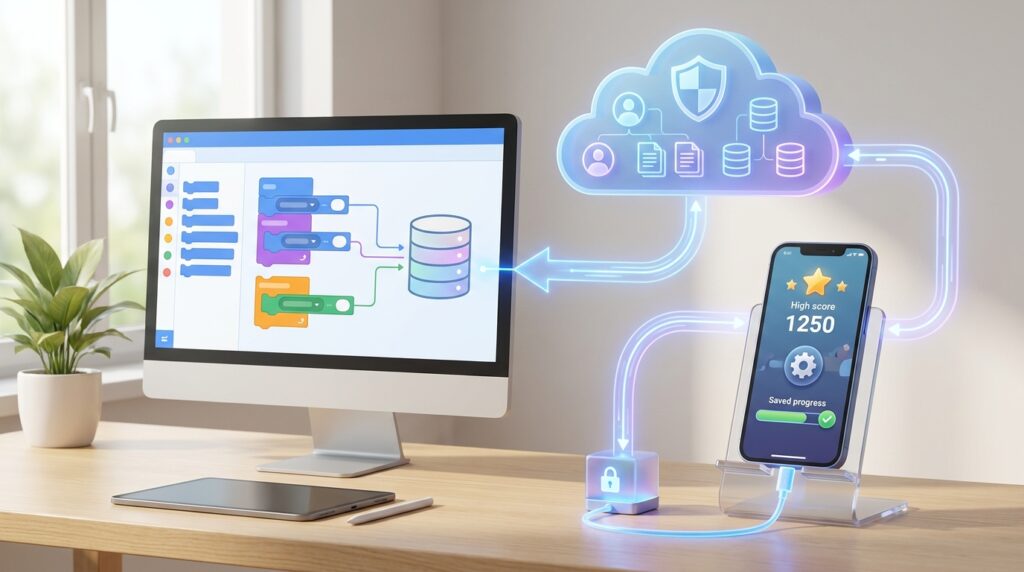
Most apps need to remember information, such as high scores or user settings, even after the app is closed. MIT App Inventor has a built-in tool called TinyDB that saves small pieces of data on the phone itself. This is perfect for keeping track of personal preferences or local game progress without needing an internet connection. For bigger projects that involve many users, you can connect to cloud databases like Firebase to store information online. Knowing when to use local storage versus cloud storage helps your app run smoothly and reliably. Proper data management ensures that your users do not lose their progress if they restart their device.
Testing and Fixing Problems
Even the best builders make mistakes, so testing your app often is very important. The AI Companion app lets you see changes in real time, which helps you spot errors quickly. If something does not work right, you can add temporary labels to show the values of your variables as the app runs. This trick helps you see what the computer is thinking at each step so you can find the bug. You can also test individual blocks one by one to make sure they produce the expected result. Regular testing prevents small issues from becoming big headaches later in your project.
Adding Special Features
Once you are comfortable with the basics, you can explore extra tools called extensions that add new powers to your app. These extensions let your app speak out loud, recognize voice commands, or find its location on a map. The text-to-speech feature is especially helpful for making apps accessible to people who have trouble reading. You can find many free extensions created by other users in the community marketplace. Trying these tools expands what your app can do and keeps your learning journey exciting. It is like adding new ingredients to a recipe to make the final dish even more delicious.
Keeping Your Project Organized
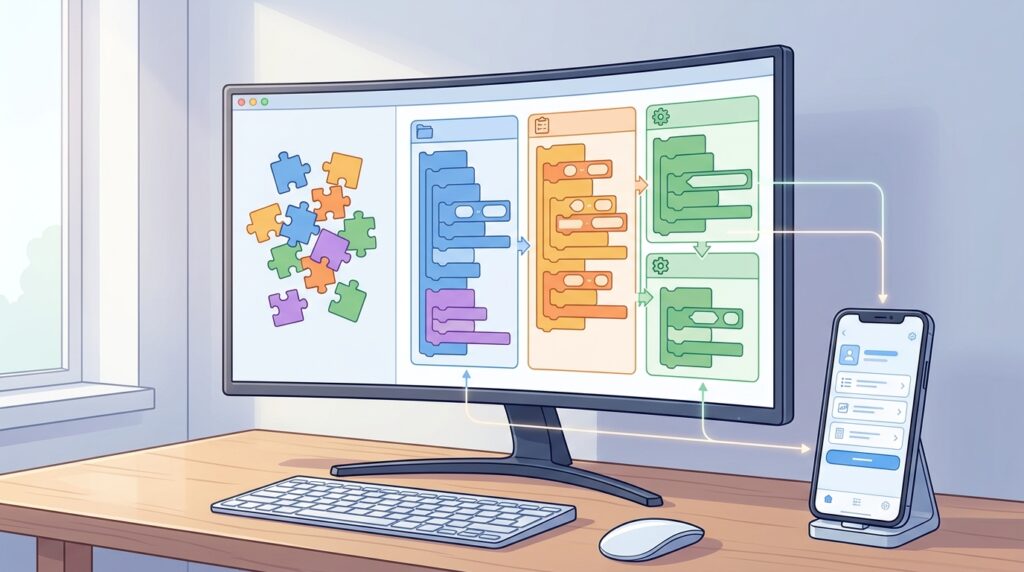
As your apps grow bigger, it becomes important to keep your blocks and components neat and tidy. Give your items clear names so you can find them easily when you need to make changes. Group related blocks into procedures, which are like mini-programs that perform specific tasks. This practice makes your main code shorter and easier to read because you can call the procedure instead of repeating the same blocks. Good organization saves you time and makes it easier for others to understand your work. It is a good habit to start early so you do not get lost in a mess of blocks later.
Solving Common Issues
Beginners often face similar challenges, such as blocks that will not connect or screens that look wrong on different phones. Usually, these problems happen because the data types do not match, like trying to put text into a number slot. Checking the shape and color of the blocks helps you see why they do not fit together. If your app runs slowly, you might be updating the screen too often or using too many complex calculations. Simplifying your logic or reducing the number of active timers can help improve performance. The community forums are full of helpful people who have solved these same problems and are happy to share their advice.
Moving Forward with Your Skills
After you have built a few simple apps, you can challenge yourself with more advanced projects. Try making an app with multiple screens, or one that connects to an online service to get live data. You can also share your creations with the world by publishing them or teaching others how to use mit app inventor. The thinking skills you learn here apply to many other areas of technology and problem-solving. Whether you want to build tools for your school, help your local business, or just have fun, this platform gives you the power to create. Keep experimenting and enjoying the process of bringing your ideas to life.
Frequently Asked Questions
Can I make apps for iPhones with this tool?
Yes, you can build apps that work on iOS devices, but the process is slightly different than for Android. You may need to use a simulator on your computer to test the iPhone version since the AI Companion works best with Android phones.
Do I need to know how to code before starting?
No, you do not need any prior coding experience because the block system handles all the syntax for you. It is designed specifically for beginners who want to learn logical thinking without worrying about typing errors.
Is it free to use mit app inventor?
Yes, the platform is completely free to use for anyone with a Google account. There are no hidden fees or subscriptions required to access all the features and build unlimited apps.
What if I do not have an Android phone for testing?
You can use an Android emulator on your computer, which is a program that mimics a phone screen. This allows you to test your apps without needing a physical device, although a real phone provides a better experience.
Can I save my work and come back to it later?
Yes, all your projects are saved automatically in the cloud under your account. You can log in from any computer and continue working on your apps exactly where you left off.
How do I share my app with friends?
You can generate a QR code or a link from the platform that lets others download your app directly to their phones. This makes it easy to share your creations without going through official app stores.
Disclaimer
This article is for educational and informational purposes only. The content provided here reflects general knowledge and personal experience with MIT App Inventor as of 2026. While we strive to keep the information accurate and up-to-date, technology changes quickly, and specific features or steps may vary depending on your device, software version, or internet connection. We do not guarantee that every method described will work perfectly in every situation. Always test your apps carefully and follow safety guidelines when connecting to external hardware like Arduino or ESP32 boards. We are not responsible for any errors, data loss, or technical issues that may occur while using the tools or techniques mentioned. Please use this guide as a starting point for your learning journey and consult official documentation for the most current technical details.