
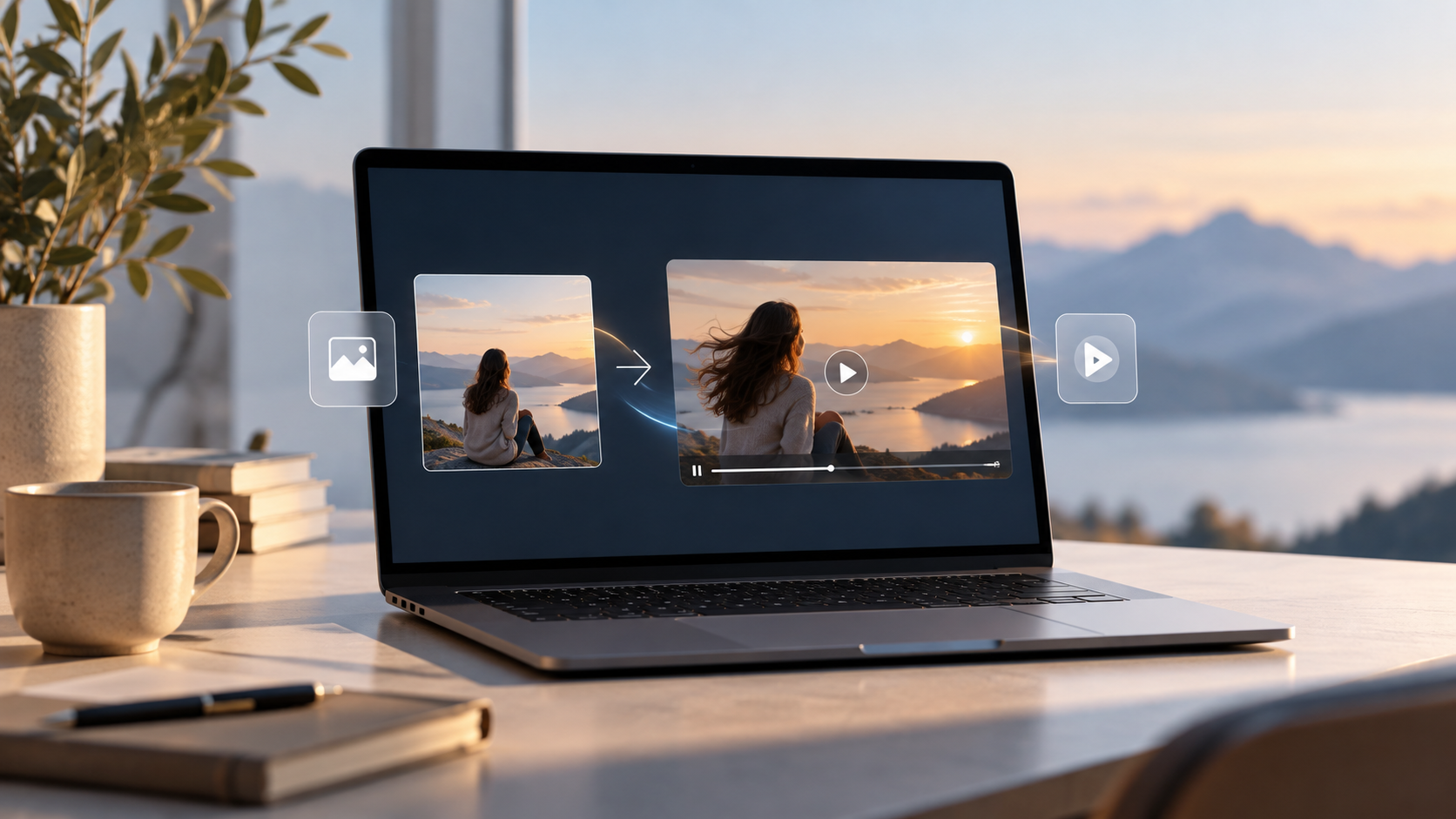
Creators rarely run out of ideas. They run out of footage. A YouTube video may have a solid talking-head recording but no visual cutaways. A product creator may have excellent photography but nothing moving between explanation segments. A travel creator may come home with hundreds of photographs and later find that the most memorable places were barely filmed.
In the past, these gaps usually led to one of three choices: plan another shoot, search for generic stock footage, or accept an edit that looks repetitive. Image-to-video tools have added a fourth choice. Instead of asking AI to build a whole finished video, you can use photos you already own as the starting point for short supporting shots. A still landscape can become an atmospheric opening clip. A product photo can gain a gentle camera move. An architectural image can turn into a slow bridge between two sections.
This is a much smaller job than “make me a video,” and that is exactly why it works well. The goal is not to invent footage of things that never happened. The goal is to create visually consistent B-roll from material you already have.
What AI B-Roll Actually Means
B-roll is the supporting footage that surrounds your main story. In most videos, the A-roll is the interview, the presenter, the demonstration, or the main action. B-roll helps the viewer understand the context, stay interested, or see the thing being discussed. If you review a camera, for example, you might use your presenter footage as A-roll, close-ups of buttons and dials as B-roll, and older photos from a previous shoot as extra visual context.
With image-to-video generation, some of those supporting shots can begin life as still photographs. The key point is that they should stay supporting shots. A generated clip should never be used to suggest that a product can do something it has never done, and a synthetic scene should never be passed off as real documentary footage of an event. When used honestly, moving stills can fill ordinary editing gaps very well.
Start by Auditing the Photos You Already Have
Before you open any generator, spend some time looking through your archive. Most creators own far more usable material than they think. A helpful trick is to stop sorting photos by date and start sorting them by the job they could do inside a video.
Establishing images
These photos show where something happens or set the scene. Think of city skylines, rooms, landscapes, storefronts, workspaces, and event venues. They tend to work best with light environmental movement or a slow camera drift.
Detail images
These draw attention to something the viewer needs to notice, such as product controls, packaging, materials, ingredients, artwork, or tools. Detail photos make strong B-roll because their purpose is already obvious the moment they appear on screen.
Portraits
Portraits can support introductions, profiles, interviews, biographies, and travel stories. They usually need much less movement than beginners expect, and a small, calm motion often looks more natural than a big one.
Process photographs
A still of someone cooking, sketching, designing, packing an order, or working at a desk often contains everything needed for a process-style cutaway. The activity is already visible, so the motion only has to hint at it.
Texture and atmosphere
Not every shot needs a main subject. A cup of coffee on a desk, waves on a shoreline, plants by a window, a notebook, folded fabric, clouds, or a quiet street corner can give your edit a visual breather between sections that are heavy with information.
Give Every Generated Shot a Job
One of the most common mistakes is creating motion just because the tool allows it. A better habit is to decide what the shot is for before you generate anything. Ask yourself what the viewer should learn or feel from it. A mountain photo might tell people where you are. A close product shot might remind them what you are talking about. A workspace image might show how you work. A portrait might introduce a person.
Once the purpose is clear, the motion almost chooses itself. If the shot is meant to feel calm, keep the movement calm. If the shot is meant to help someone inspect a product, the camera should reveal details instead of pulling attention away from them.
The Best B-Roll Motion Is Usually Simple
Modern image-to-video systems can attempt fairly complex movement, but complex does not mean useful. A short insert of a few seconds rarely needs more than a slow push forward, a small sideways camera move, a light parallax effect, rippling water, drifting clouds, a soft change in light, or fabric moving in a breeze.
Your photo has already settled the composition, the subject, and the look. That means your prompt should focus mainly on what changes, not on describing the whole scene again. Here is an example for a workspace:
Slow camera push toward the desk. Curtain moves gently near the window. Keep the laptop, notebook, coffee cup, and furniture arrangement stable.
And one for a product:
Small left-to-right camera movement across the product. Soft highlight moves over the surface. Preserve product shape, logo position, colors, and packaging.
Simple motion also blends better with real footage, because it does not shout for attention when it appears between two regular shots.
Using Low-Friction Tools for B-Roll Experiments
When creators first try this workflow, they often want to test an idea quickly before committing to a full production tool. That is why many of them search for terms like Image to Video AI Free no Sign Up and look for a simple place to try one photo and see what happens. A quick test like this helps you learn whether a picture holds up as moving footage before you spend more time or money on it.
The wider tool landscape is broad, and each option sits in a different place in the workflow. Runway focuses on generative control, and its documentation advises that image-to-video prompts should concentrate on motion because the uploaded image already defines the scene. Adobe Firefly can create video from uploaded images and offers camera-style controls inside the larger Adobe ecosystem. CapCut lets you move straight from generation into editing, where pacing, captions, voiceover, and music can be added. Features, limits, and pricing in all of these change from time to time, so check each tool’s current page before you plan a project around it.
Build B-Roll Around an Existing Edit
One of the most efficient habits is to edit your main video first. Imagine you have a six-minute tutorial. Build the basic cut using only your presenter footage, then watch it from start to finish and mark the places where the viewer would benefit from a different image. Your notes might look like this:
- 0:18 — the presenter mentions the destination. Need: a location shot.
- 1:05 — the presenter talks about the product’s exterior. Need: a product detail.
- 2:40 — the presenter describes working from a café. Need: workspace atmosphere.
- 4:10 — the presenter talks about portability. Need: a bag or travel image.
Only after you have this list should you start generating clips. This simple order prevents a very common problem: ending up with a folder full of attractive AI clips that never fit anywhere in the actual video.
Example: Turning Four Photos Into Useful B-Roll
Let’s say you are making a travel-tech video, and your photo library includes a mountain lake, a backpack on a cabin floor, a laptop beside a window, and a coffee cup with a view of the landscape. Each photo can serve a different purpose.
Shot 1: Location
Prompt: Clouds move slowly across the mountains while the lake develops subtle ripples. Gentle camera push forward. Preserve the shoreline and mountain structure.
Purpose: Show the viewer where the trip takes place.
Shot 2: Gear
Prompt: Slow camera movement toward the backpack. Soft daylight shifts across the fabric. Keep the bag shape, zippers, straps, and surrounding floor unchanged.
Purpose: Support the section about what you packed.
Shot 3: Working setup
Prompt: Very slow lateral camera move across the laptop and desk. Curtain shifts slightly in the breeze. Preserve the computer, desk objects, and window frame.
Purpose: Illustrate what remote work looks like on the road.
Shot 4: Transition
Prompt: Steam rises gently from the cup while distant trees move subtly. Camera remains mostly still.
Purpose: Offer a quiet pause between two sections.
None of these clips contains dramatic action, and that is the whole point. They work because they stay in the background and let the narration lead.
Why Dedicated AI Video Platforms and Editors Solve Different Problems
Generating motion and finishing a video are two separate tasks. A generator creates the clip, while an editor turns many clips, voice, music, and text into something people actually want to watch. Runway is built around generating shots with more control. Firefly ties generation into Adobe’s wider creative tools. Vidou keeps the image-to-video idea fairly direct for still-based projects. CapCut sits closer to the finished social video end, because a generated clip can flow right into a normal timeline. Canva offers image-to-video inside a design workflow, and its separate AI Effects feature relies on ready-made templates instead of custom prompts, so it suits quick vertical content more than detailed shot planning.
You do not have to marry one platform. A more useful question is simply: which part of my workflow am I trying to solve today? Sometimes the answer is a quick test, sometimes it is precise camera control, and sometimes it is just getting the final cut exported on time.
Keep Generated B-Roll Visually Consistent
AI clips can look like random experiments if they do not share a common style of movement. If your main footage is calm and documentary-like, aggressive generated camera moves will feel out of place. If your edit is quick and energetic, very slow AI clips may feel disconnected. Aim to keep a few things steady across the whole video:
- Motion speed: Pick one general pace and stay close to it.
- Direction: Repeating the same direction, such as left to right, builds a sense of flow.
- Framing: Avoid jumping between very wide scenes and tight synthetic close-ups unless the story truly needs it.
- Lighting: Photos from the same shoot often match well because their color and light already agree.
- Subject treatment: If several portraits appear, use similar, restrained movement for each one instead of animating every person differently.
Know When Not to Generate B-Roll
Sometimes the original photo is simply the better choice. If a package has important small print, motion can make it harder to read. If a portrait has hands close to the face, extra animation can introduce strange results. If a photo documents something that really happened, turning it into synthetic motion may leave viewers unsure about what was real. And if a shot only stays on screen for a second, a still image with a basic zoom or pan in your editor may be all you need. Generative video is one tool among several, not a rule you must follow every time.
Finish With Conventional Editing
Once your AI clips are ready, treat them like any other footage. Trim weak starts and endings, and use only the most stable part of each generation. Handle audio separately, and match the pacing to your voiceover. Keep transitions simple, and add exact text inside your editor instead of trusting the AI to draw letters correctly. If you used CapCut, you can do much of this in the same place. If you work in the Adobe ecosystem, you may prefer to keep the clips there. The tool that creates the clip does not have to be the tool that finishes the video.
Protect Accuracy and Rights
B-roll still needs editorial standards. Upload only photos you have the right to use. Do not create misleading product behavior, and do not fabricate evidence that looks like real documentary footage. Do not animate a real person in a deceptive way. Most AI video platforms publish rules against deceptive deepfakes, impersonation, and copyright infringement, so read the terms of the tool you choose. These are sensible boundaries for any AI-video workflow, and following them protects both your audience and your reputation.
A Better Definition of “More Content”
AI video is often sold as a way to make more content faster. For solo creators, a more useful idea may be this: get more value from what you have already made. A strong photograph does not have to stop working after the original post, campaign, or shoot is over. It can set a location, support your narration, illustrate an idea, or fill a gap that would otherwise need generic stock footage.
When image-to-video tools are used in this way, they stop being flashy demos and become practical editing helpers. That is where AI B-roll becomes genuinely useful.
Frequently Asked Questions
Can a still photo really be used as B-roll?
Yes. A photo can become a short motion clip through image-to-video generation, or it can be animated the traditional way inside a video editor. What matters most is whether the final shot supports your main story.
What types of photographs make the best AI B-roll?
Clear landscapes, products, interiors, workspaces, portraits, architecture, and atmospheric detail shots are good places to start, especially when the main subject is easy to see.
Should AI B-roll replace real footage?
Not necessarily. It works better as another source of supporting visuals. Real footage is still the better choice when you need to show an exact action, demonstration, event, or documentary moment accurately.
How long should an AI B-roll clip be?
Only as long as its job requires. Many image-to-video tools produce short clips, and you can always trim them further in your editor.
Which image-to-video tool is best for B-roll?
It depends on your workflow. Runway leans toward generative control, Firefly fits Adobe-based production, CapCut combines generation with social editing, Canva brings motion into design projects, and Vidou offers a direct, image-led route.
Should text be generated inside the video?
It is usually safer not to. Prices, dates, product names, web addresses, and other exact wording are best added during conventional editing, where you control every letter.