
A streaming app can be all you need when you want to watch an episode on your phone. The setup gets more complicated if you prefer watching on a laptop, use several streaming services, or need a particular subtitle language. You may also want to save the occasional Instagram Reel you’ve posted without switching to a separate tool.
Keeprix Video Downloader brings those tasks into one Windows and Mac app. This review covers the difference between its free social media downloads and its streaming features, shows how to save an episode as an MP4, and explains what to check before buying a licence.
What Is Keeprix Video Downloader?
Keeprix is a desktop video downloader that saves supported videos as local MP4/MKV files. It groups streaming services and social platforms in the same app, with a built-in browser for services that require you to sign in. For supported public social media videos, you can also use a link.
The main difference from an in-app download is where you play the video. A streaming service’s official download usually stays inside its app. Keeprix saves supported titles as MP4 or MKV files in a folder you choose, so you can open them in a compatible media player.
What Can You Download With Keeprix?
Keeprix Video Downloader saves supported streaming and social media videos on Windows and Mac. Its main features cover how you save the files, how many episodes you can queue, and which audio and subtitle tracks you can keep.
- Local MP4 and MKV Downloads. Save supported movies and episodes from Netflix, Prime Video, Disney+ and other streaming services as MP4 or MKV files. Choose where to store them and play them offline in a compatible media player. You’ll need access to the title through your own streaming account.
- Batch Episode Downloads. With a paid licence, you can select several supported episodes and add them to one download queue. This is useful if you want to save the next few episodes of a series without setting up each download separately.
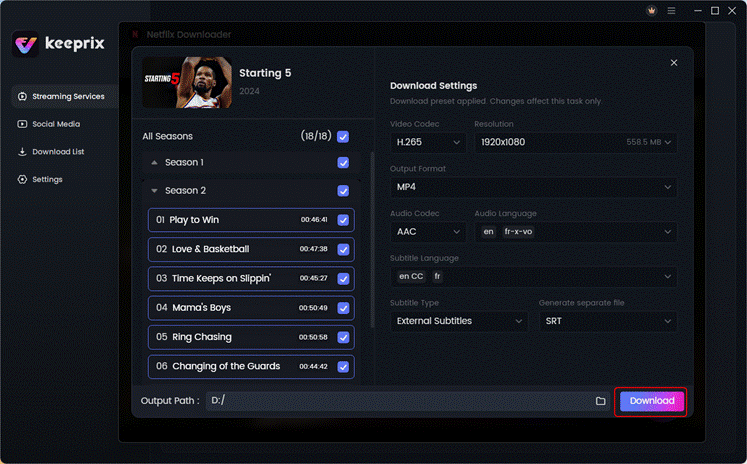
- Audio and Subtitle Selection. Choose from the audio and subtitle languages available for the title. Where supported, you can keep subtitles inside the video file or save them separately for use in your media player.
- Free Social Media Downloads. Save supported videos from Instagram, TikTok and YouTube for free. For Instagram, this includes public Reels and video posts. If you prefer to save a Reel in your browser, see GramSnap’s Instagram Reels download guide.
How to Save a Streaming Episodes as MP4 Files
Keeprix runs on Windows 10 and 11 and macOS 12 Monterey or later. You’ll need an internet connection to sign in and download, plus enough storage for the finished file. The example below uses a Netflix episode. Only save material you’re authorised to copy, and check the service’s terms.
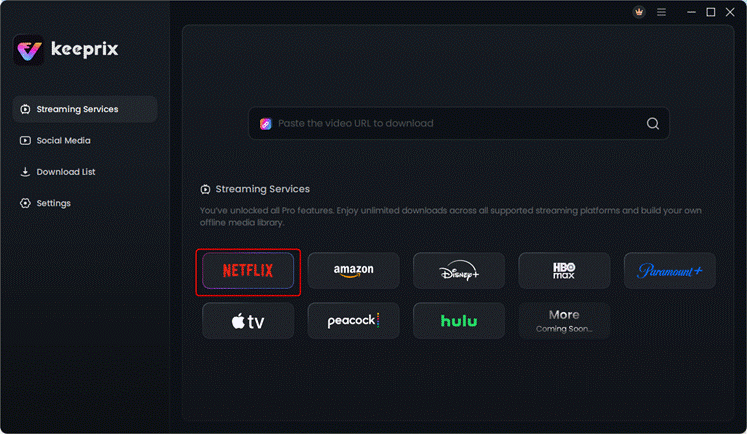
Open the Streaming Services and choose Netflix. Download Keeprix to your Windows PC or Mac. Launch Keeprix, select Netflix and sign in through the built-in browser.
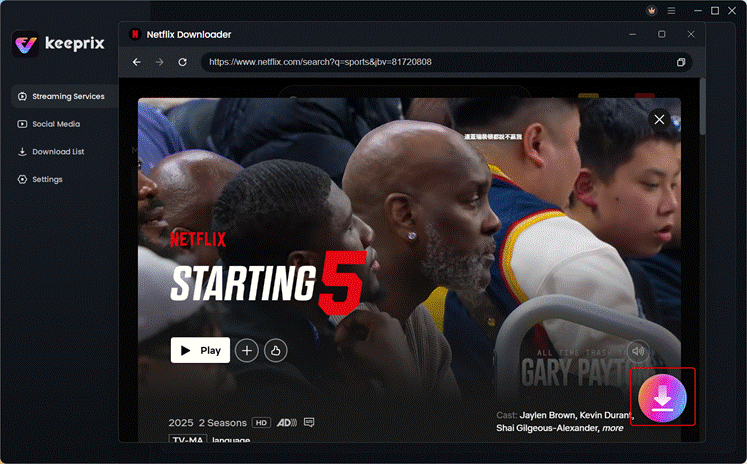
Choose the movies or shows. Open the series and choose the season and episode you want. Click the Download icon to continue.
Choose the downloading settings like MP4, Audio and Subtitles. Select MP4, pick an available resolution and check the soundtrack and subtitle language before you start. Click the Download button to start.
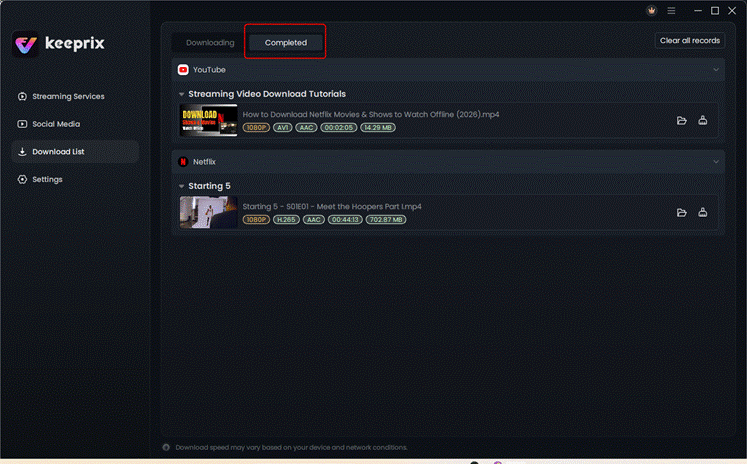
Check the Finished File in Your Usual Player. Open the MP4 from Finder or File Explorer with Wi-Fi turned off. Skip to a scene with dialogue, check the sound, and turn on the subtitle track you selected. If you plan to download several episodes, check the size of this first file before adding the rest.
What Works Well and What to Check Before Buying
- Batch downloads are most useful for a series. If you’re halfway through a season, you can queue the next few episodes instead of setting up each download separately. Check the episode list before starting, especially if the series has several seasons or bonus episodes.
- Audio and subtitle settings are worth checking on the first download. A sports docuseries is a good example. One episode might switch between commentary and interviews in several languages. Choose the tracks you need and confirm that they work in your player before applying the same settings to the rest of the season.
- Try the streaming workflow before buying. Keeprix offers a free trial for supported streaming services. Use it on a title you actually plan to watch, then check the format, picture quality and subtitles. The paid licence unlocks unlimited downloads of supported streaming titles and batch downloading. If you only need the supported social media features, those downloads are free.
What If a Title Does Not Appear?
Try playing the title directly on the streaming service with the same account. If it plays there but Keeprix doesn’t show it, that title may be unsupported. If the file downloads and plays but the subtitles are missing, check your player’s subtitle menu. For external subtitles, you may need to open the subtitle file from the player.
Frequently Asked Questions
Do You Still Need a Streaming Subscription?
Yes. You’ll need whatever account or subscription the service requires to access the title. A Keeprix licence covers the downloader. Access to streaming content depends on your streaming account.
Should You Choose MP4 or MKV?
Start with MP4 if you want a file that’s easy to open in a common media player. Consider MKV if you need to retain multiple audio or subtitle tracks and know your player supports them. Try one file in the player you’ll actually use.
Can You Download Instagram Reels for Free?
Yes. Keeprix’s Instagram feature can save supported public Reels and video posts for free. Use it for your own videos or material you have permission to save.
Can You Download a Whole Season?
The paid batch feature lets you queue multiple supported episodes. Open the season first and check which episodes the app lists. You can then select the ones you want, whether that’s the next two or the whole available season.
Final Verdict
Keeprix is most useful for people who want local video files on Windows or Mac, especially if they watch series across several streaming services or need control over audio and subtitle settings. If you usually watch on a phone or tablet and your streaming app already downloads the titles you want, its built-in feature may cover your needs.
If you’re considering a licence, start with one streaming episode. Check that it plays offline, that your preferred soundtrack and subtitles are available, and that the file size fits your storage. Those checks will tell you whether Keeprix suits the way you watch.